Setting up the Microsoft Outlook 2007/2010 email client to receive mail using the IMAP and SMTP protocols.
We strongly recommend using the IMAP protocol
to receive mail. We explain why in a separate article, Why use IMAP instead of POP3 to receive mail.
To send and receive mail with an email client, you need to create a new mail account in it. Here is the guide.
Outlook 2007
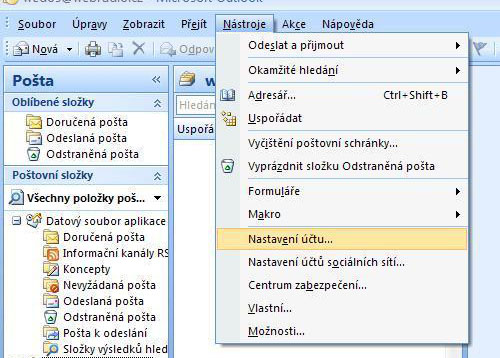
Choose Tools, Account Settings (Nástroje, Nastavení účtu)
Outlook 2010
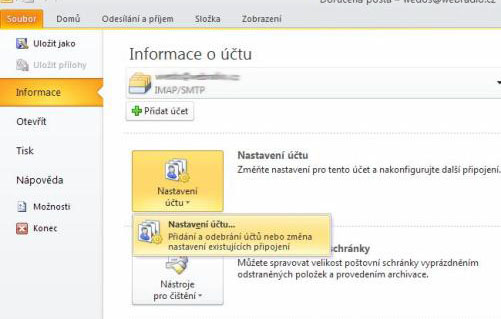
Choose File, Info, Account Settings (Soubor, Informace, Nastavení účtu)
The next steps are the same in both clients
Setting up a new account
Email accounts
After opening Account Settings (Nastavení nového účtu), select the Email (E-mail) tab and then the New (Nový) button...
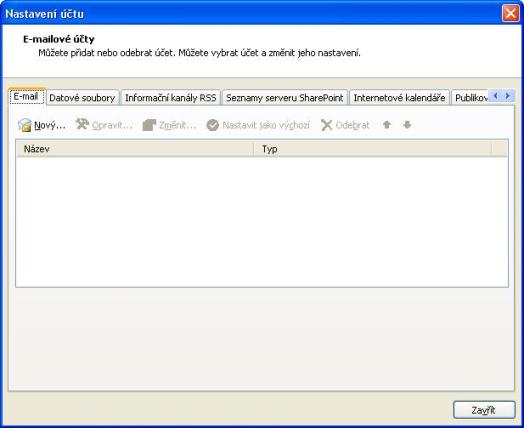
Add a new account
In the next window, choose Manually configure server settings or additional server types (Konfigurovat ručně nastavení serveru nebo další typy serveru) and continue with the Next > (Další >) button
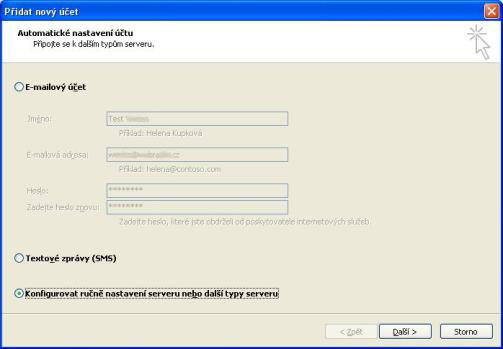
Choose service - Internet Email
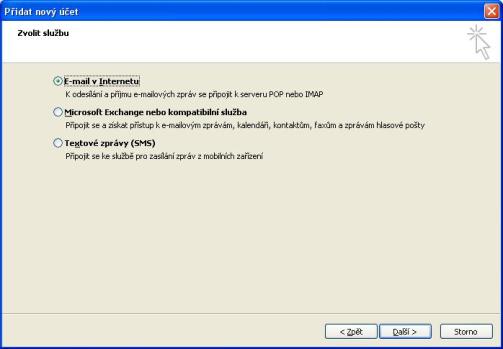
In the following window, choose Internet Email (E-mail v Internetu)
Internet email settings
- Your Name (Jméno): Enter the display name for the email, for example Jan Novák
- Email Address (E-mail adresa): The address created in the web hosting admin panel, including the domain, for example jan.novak@mujweb.cz
- Account Type (Typ účtu): IMAP
- Incoming mail server (Server příchozí pošty): The name of the mail server for receiving mail. Addresses for downloading and sending mail
- Outgoing mail server, SMTP (Server odchozí pošty): The name of the mail server for sending mail. Addresses for downloading and sending mail
- User Name (Uživatelské jméno): again the full email address (it serves as the login)
More settings
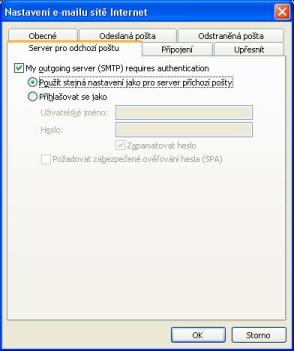
In the email account settings window, open the More Settings (Další nastavení) window.
- My outgoing server (SMTP) requires authentication (Server pro odchozí poštu (SMTP) požaduje ověření)
- Use same settings as my incoming mail server (Použít stejná nastavení jako pro server příchozí pošty)
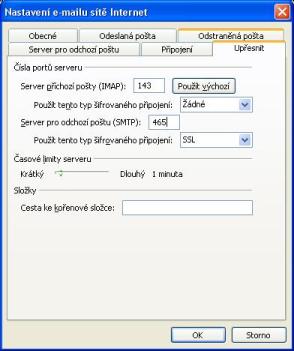
Go to the next tab, Advanced (Upřesnit), and set:
- Incoming server (IMAP) - set the port, see Addresses for downloading and sending mail
- Outgoing server (SMTP) - set the port, see Addresses for downloading and sending mail
- Then Use the following type of encrypted connection: SSL
Save the settings with the OK button
Account test
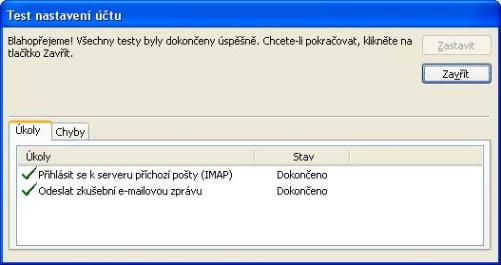
Continue with the Next > (Další >) button and a connection test will run
Finishing
To save our settings, continue with the Finish (Dokončit) button.
Note: Some internet providers block SMTP servers other than their own. In this case, contact your internet provider and ask for the details of the SMTP server for sending mail from your computer.