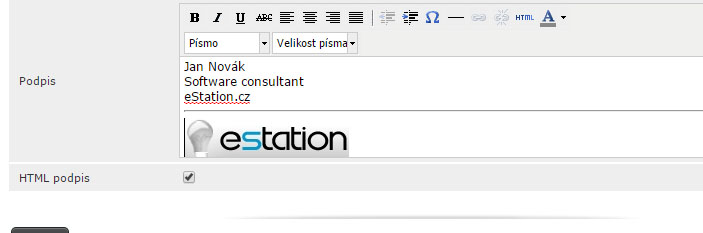
If you want to automatically insert your own signature, or a so-called business card, at the end of your emails, the following guide will be very useful.
To set up an automatic signature, go through the following steps:
- log in to your mailbox in the RoundCube web interface at https://webmail.spacehost.cz
- go to the settings: “Settings (Nastavení)” => “Identities (Profily)” => in the Identities menu select the default identity or create a new one (the “+” button at the bottom of the screen)
- on the right side of the screen, enter your name (and other details if you like) and write the automatic signature you want
If you need to insert an image into your signature, you have to create an HTML signature, and the image (in PNG, JPEG, GIF, or BMP format) must be publicly available at some URL.
Email messages then need to be sent in HTML format. As an example, I will place the image on the web hosting FTP and use the internal address of the web hosting to access the image.
- Set messages to be sent in HTML format in the RoundCube web interface under “Settings (Nastavení)” => “Preferences (Vlastnosti)” => “Composing Messages (Psaní zpráv)” => “Compose HTML messages (Vytvářet HTML zprávy)” = “always (Vždy)”
- Place the image on your website's FTP, for example in the directory: /www/podpis/nazev_obrazku
- The image will then be available at http://yourdomain.cz/podpis/wedos-logo.png
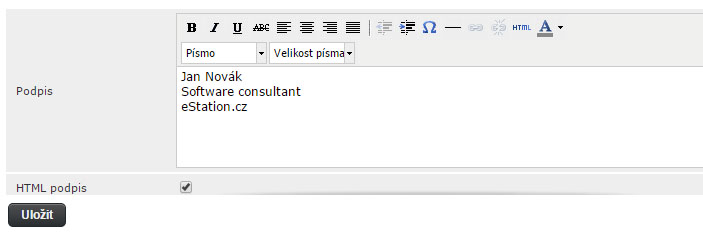
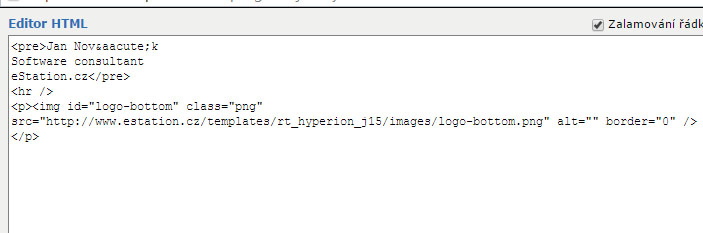
- In RoundCube, tick the “HTML signature” option in the signature section and insert an image tag (IMG) into the HTML code
The resulting HTML code may look like this:
When composing a message, a signature created this way looks like this: