If you cannot delete emails you no longer need from a full mailbox in the RoundCube email interface, there are two ways
to remove emails from the mailbox.
First, you need to understand how deleting emails works. Emails are not actually deleted but moved to another folder (trash). The mail therefore still takes up space in the mailbox.
How to remove emails:
1. Emptying emails from the folder (trash)
If moving emails to the trash fails with an error because the mailbox is full, proceed as follows:
- Open the Trash (koš) folder.
- Use the Select (Vybrat) option to mark all messages (or select the messages to delete manually).
- At the top, choose the Delete (Smazat) action to remove the selected messages.
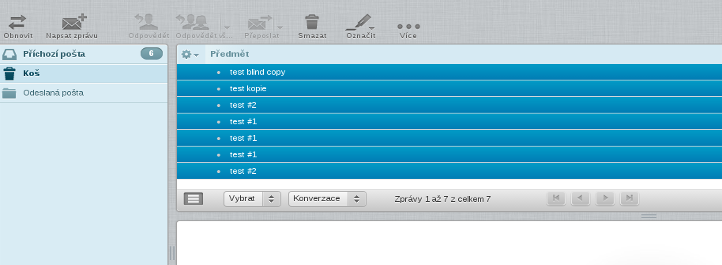
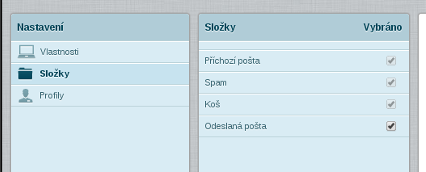
After removing emails from the trash, space is freed up and you can continue deleting emails. You may also need to clear the junk mail folder (Spam). The procedure is identical, but if you do not see that folder, you may first need to subscribe to it in Roundcube:
- Click the cogwheel icon at the bottom left of the main webmail page.
- Choose Manage folders (Spravovat složky).
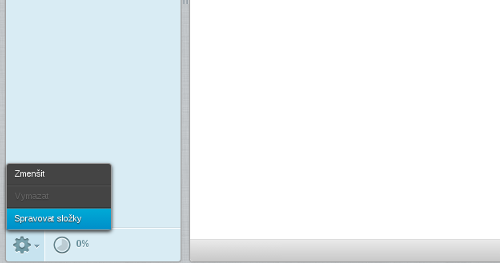
- The relevant settings section will open, where you subscribe to the spam folder. If you do not see it here, the folder does not exist on the server at all.
2. Changing the message deletion settings
If, however, the trash is empty and the mailbox is still full, the only option is to delete messages directly, without saving them to the trash.
In the webmail interface, proceed as follows:
- In the top right menu, click the Settings (Nastavení) button
- In the section that appears, choose Server Settings (Nastavení serveru)
- In that section, tick the option: Delete messages if moving them to Trash fails (Odstranit zprávy, pokud selže jejich přesun do koše)
- Then continue with the Save (Uložit) button
When you delete emails afterward, any emails that cannot be moved to the trash are removed completely. Once space is freed up, messages will again be saved to the trash in the usual way.