To learn how to open database management and reach the phpMyAdmin tool itself, read the article How to access a database.
If you need to export or import a database for any reason, you can do it easily with the phpMyAdmin tool mentioned above.
Exporting a database
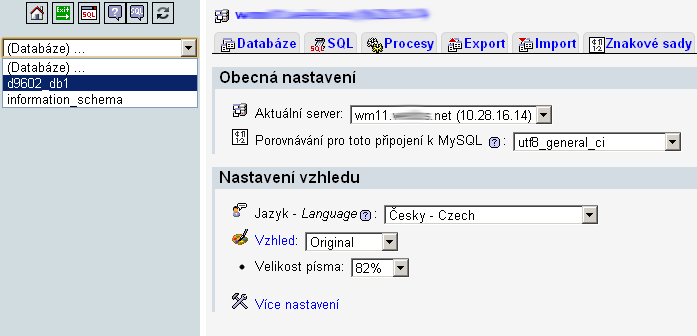
After logging in to phpMyAdmin, first select the database you want to export (back up) from the original or current MySQL server.
After selecting the database, choose Export (Export) in the top menu and set the following options:
- Tables (Tabulky): Select all (Vybrat vše)
- Export method (Způsob exportu): Custom - displays all options (Vlastní - zobrazí všechna nastavení)
- Output (Výstup): Save as file (Uložit do souboru)
- Format (Formát): SQL
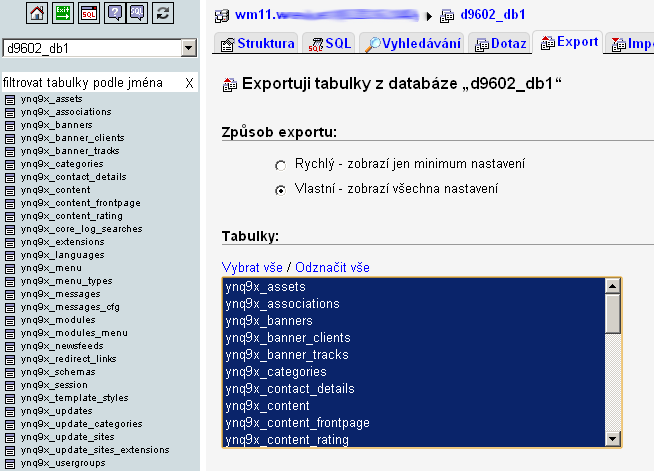
Leave the other items at their default settings and click the Go (Proveď) button.
You will then be prompted to save an *.sql file to your computer. Once the database is completely saved, the export of the original (backed-up) database is complete.
Importing a database
After logging in to phpMyAdmin, first select the database into which you want to import tables from the original or current MySQL server.
After selecting the database, choose Import (Import) in the top menu and select the *.sql file from the previous step (the export). It must always be an import of database tables only. The imported file must not contain multiple databases or commands that create databases (it may contain only the structure and data of the tables).
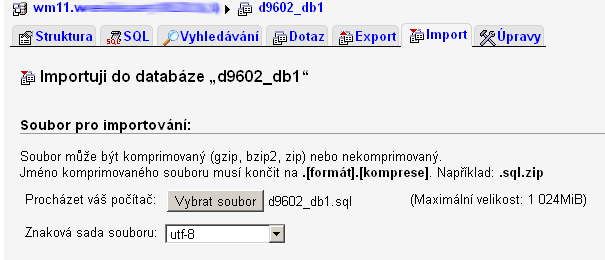
Leave all values at their default settings and click the Go (Proveď) button.
Now you need to wait for the import to complete, which depends on your internet connection speed and the volume of imported data.
You will be informed about the result of the import by a table:
