Theoretical information about encrypted and trusted access to websites, the certificate and private key, and certificate authorities.
Encryption and trust
Encrypted communication means that all data transferred between the server and the client (our server and your web browser) is encrypted. Someone may intercept the communication along the way, but cannot decrypt it, and so learns nothing about which pages you are viewing or what data you submit in a form. With unencrypted communication, it is not recommended to send personal data through web forms, as it could theoretically be intercepted and misused by a third party (especially passwords, credit card numbers and so on).
Trusted communication means that the client verifies the identity of the server, and so can be sure that it is downloading the web pages from the right server and that an attacker has not slipped it fake pages.
Encryption does not guarantee trust; they are two different things, but SSL can provide both.
What SSL and HTTPS are
SSL (Secure Socket Layer) is, in general, a technology used in computer networks for encrypted and trusted communication. It can be used with any application protocol: with POP3 (POP3 + SSL = POP3S), with SMTP (SMTP + SSL = SMTPS) and so on.
To use SSL we need 2 things:
- Private key - an encryption/decryption key that the owner keeps secret, that is, places on the web server.
- Certificate - a public key for encryption/decryption that contains information about the identity of its owner (its server) and is signed by a certificate authority.
A certificate (in the case of web pages) is always tied to a domain name (or it can be issued for several domain names).
Regular certificates are for one specific name only (e.g. www.example.cz). Communication is then trusted if the certificate is used on a website whose domain exactly matches the name in the certificate. If these names do not match, the communication is not trusted.
So-called wildcard certificates have the form *.example.cz, so they can be used for websites on any subdomain, for example www.example.cz, eshop.example.cz and so on, and communication is trusted in all these cases. However, this no longer applies to fourth-level domains (e.g. my.eshop.example.cz).
To access a website over SSL, URLs starting with https are used, for example https://www.example.cz/. For unencrypted access, the address starts with just http, for example http://www.example.cz/.
If the name of the certificate matches the domain of the website, the communication is trusted. If it does not match, it is untrusted, and when you enter such a website over HTTPS, the browser warns you of a possible security risk (because it cannot guarantee that you are not connecting to a server planted by an attacker).
An unpleasant feature of certificate authorities is the relatively high fee they charge for the guarantee they give to a digital certificate. For easier implementation, a web browser supports only the use of certificates, not standalone public keys. It is therefore necessary for every public key used to verify the identity of the other party to be electronically signed.
Self-signed certificate
A self-signed certificate is, in cryptography, a specific form of digital certificate (or electronic signature) that was signed by its own creator, who thereby also became the certificate authority. It is used for closed groups of users (a school, a company or another community). Such a certificate is verified in a different way (typically by checking its fingerprint).
As mentioned above, with such a certificate the name of the certificate matches the domain of the website, and the website is nevertheless marked by the browser as untrusted. If you are accessing a domain you know, there is practically zero risk and you can ignore the warning and continue using the website.
How do I “skip” the untrusted connection warning?
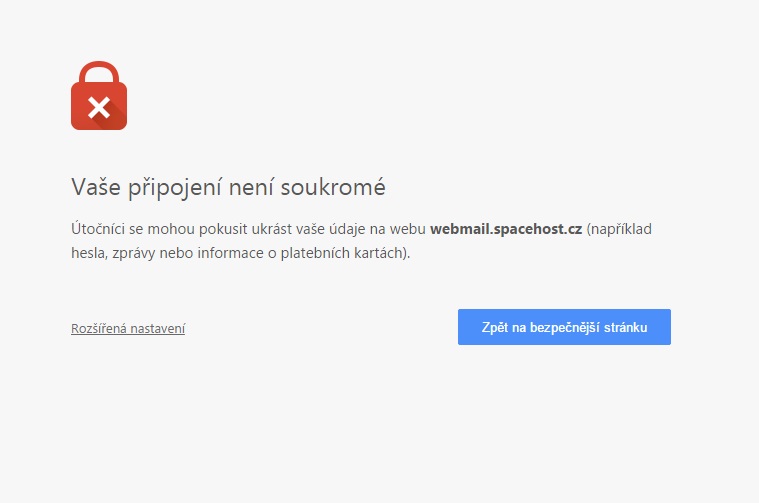
Chrome: At the bottom of the notice click “Advanced” and then, in the menu that follows, “Proceed to the website”.
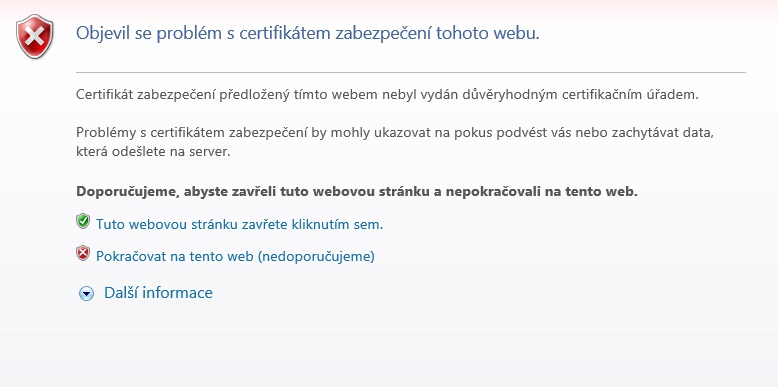
Internet Explorer: Click “Continue to this website (not recommended)”.
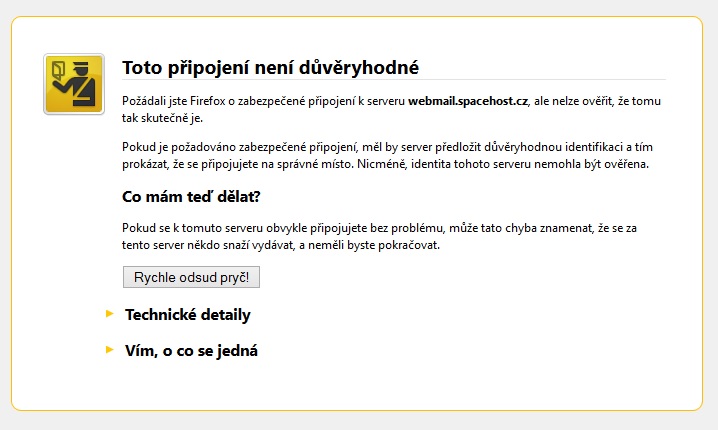
Firefox: Click “I understand the risks”; a new window opens in which you click “Add Exception”.