To log in to FTP, we recommend using the Total Commander program. Its full version is paid, but the trial version you download is a full version that only
shows various notices and ads. Otherwise, its functionality is not limited in any way.
Logging in to FTP
After installing and launching Total Commander, look among the icons at the top for FTP Connect (Připojit k FTP), which opens a window with several options.
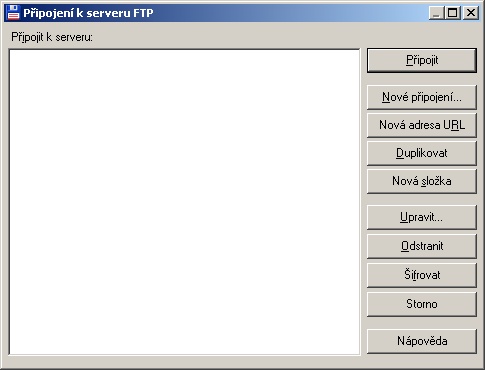
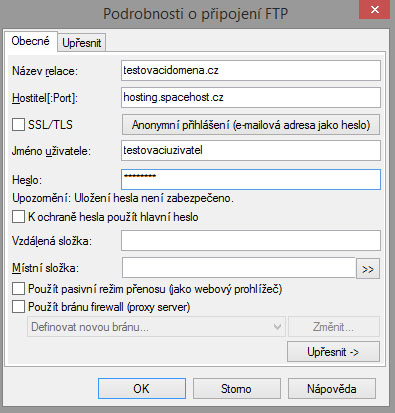
You are interested in the New Connection (Nové připojení) option, where you then need to fill in a few basic details:
- Session name (Název relace): enter whatever you like, for example MyCompany.cz
- Host name (Hostitel): enter the value you will find in your hosting admin panel under FTP users, in the Server column. At the time of writing this guide it is hosting.spacehost.cz and it will most likely be the same for you
- User name (Jméno uživatele): enter the login name of the FTP account you have created. It is the login you created in the guide How to create an FTP account
- Password (Heslo): the password belonging to the user whose name you are logging in with
- Then click OK
File management
After creating the FTP connection, click Connect (Připojit) in the displayed table, which takes you to the tree structure of the website's files.
You are only interested in the web folder. Do not delete or move the other folders!
In the web folder you are in the main folder of your website, where you can freely upload or delete old files. Keep in mind, however, that deleting the wrong file can permanently damage your website, so we recommend that inexperienced users do not manipulate these files.
Transferring the files themselves is done by simply dragging files from the left window to the right one and vice versa.