In this article we explain how to create or edit the details of an FTP account. To learn how to log in to the FTP account itself, read the guide Logging in to an FTP account.
You access the files of your web hosting using the FTP protocol, with any program that supports it (we recommend Total Commander).
A main FTP account is created for every web hosting when it is set up, and it points to the root directory of the web hosting. In it you will see the subdirectories session, tmp, and www. Do not delete these directories. Upload the public content of your website to the www directory.
The main FTP account cannot be deleted, renamed, or assigned a different directory.
Any FTP account can be locked so that it is impossible to log in even with the correct password.
If you have trouble connecting via FTP, we recommend reading the guide to setting up an FTP client.
Additional FTP accounts
For every web hosting you can create any number of additional FTP accounts, and each can point either to the root directory of the web hosting again or to any subdirectory (for example, just the directory of a subdomain or alias). After logging in, you have access to the files in that directory and its subdirectories. You cannot go up a level, which lets you partially restrict access for individual administrators of your website.
Creating a new user
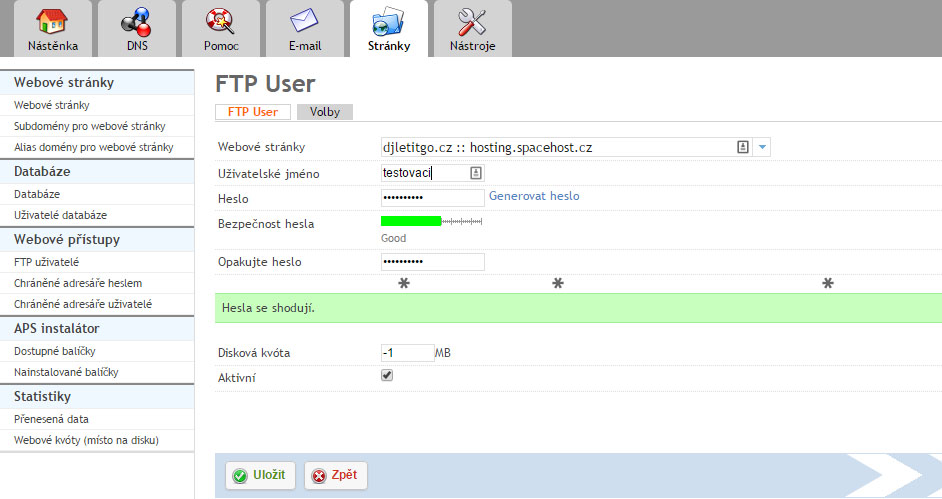
- Create a new FTP account by clicking FTP Users (FTP uživatelé) in the left menu. Then click Add FTP User (Přidat FTP uživatele).
- in the Website (webové stránky) field, select your website
- then enter the username and password (uživatel a heslo) the user will use to log in to FTP
- in the Disk quota (disková kvóta) field you can set the maximum size the FTP account may use. For unlimited space, leave the value -1 MB in the field
- finally, do not forget to tick the Active (Aktivní) box, which is also what you use to perform the FTP account locking mentioned above
A correctly filled-in form for a new FTP account may look like this, for example
Changing the password on an FTP account
You change the password by opening the user account and simply overwriting the values in the window shown in the image above, then saving them.